
Get to Know the Workspace Layout
The Mew.Design workspace is organized around one loop: brief the AI designer, review the output, then refine it with natural language. This guide explains where each part of that loop lives.
1. Prompt Area
Section titled “1. Prompt Area”The prompt area is the main control center. Use it to:
- Choose a Meow Designer for the job.
- Describe the design you need in natural language.
- Attach reference images or assets.
- Choose size, scene, and generation quantity.
- Start the generation.
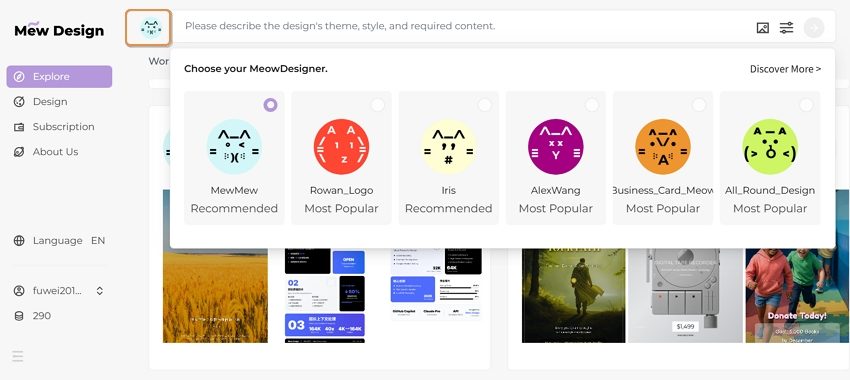
Meow Designer Selector
Section titled “Meow Designer Selector”Meow Designers are AI design agents with different specialties. Some are generalists; others are better suited for posters, cards, business materials, social content, or specific visual styles.
Pick the designer that best matches the work, then brief it as you would brief a human designer.
References and Assets
Section titled “References and Assets”Use the image and library controls when the design must use a specific logo, QR code, product photo, background, screenshot, or style reference.
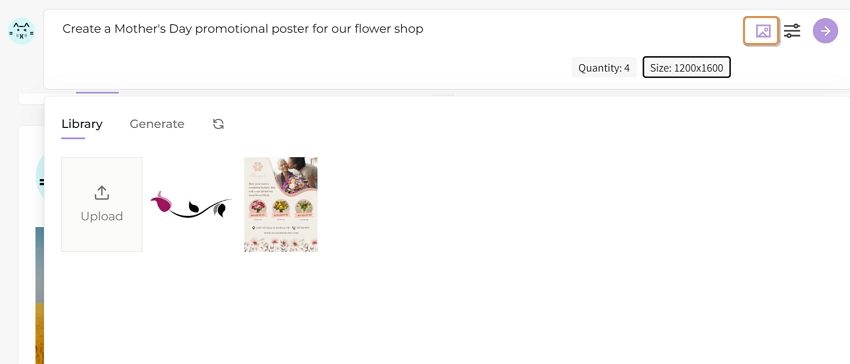
For best results, label uploaded assets by role, such as logo, product photo, QR code, or style reference.
Design Preferences
Section titled “Design Preferences”The settings panel lets you choose the scenario, dimensions, aspect ratio, and number of outputs. Use a preset for common formats, or choose a custom size when you are preparing a specific placement.
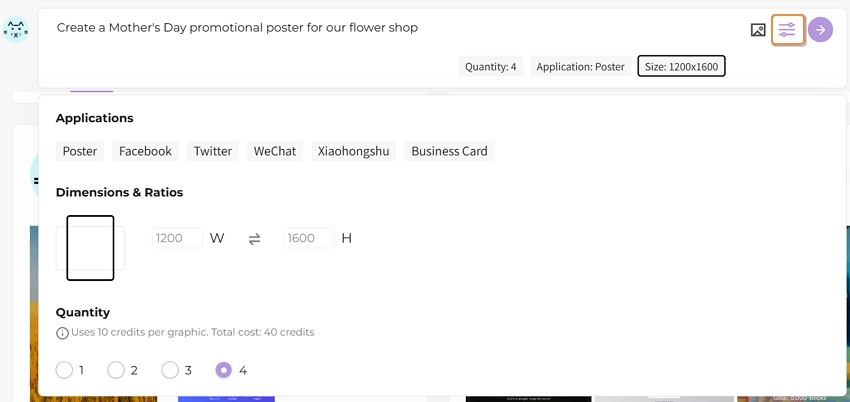
When everything is ready, click Go.

2. Explore
Section titled “2. Explore”Explore helps you move from a blank brief to a stronger creative direction.
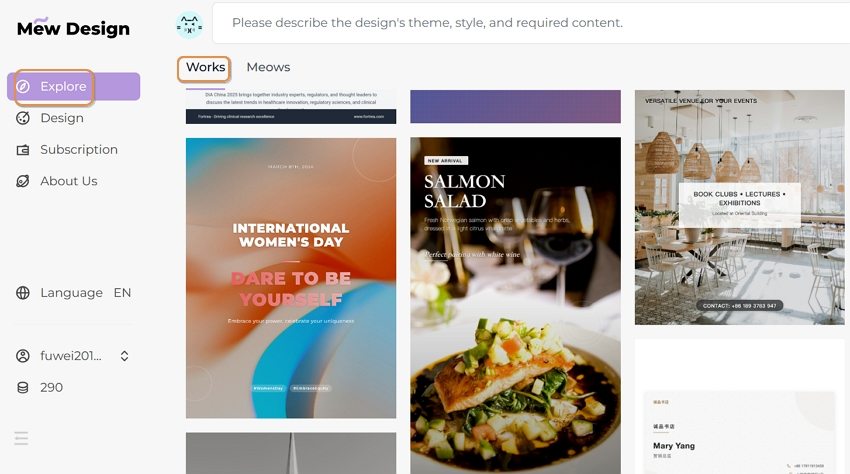
The Works area shows published community creations and your own shared work. Use it to study prompts, styles, layouts, and scenarios. When a work offers a design action, you can use it as a starting point and continue customizing it through prompts.
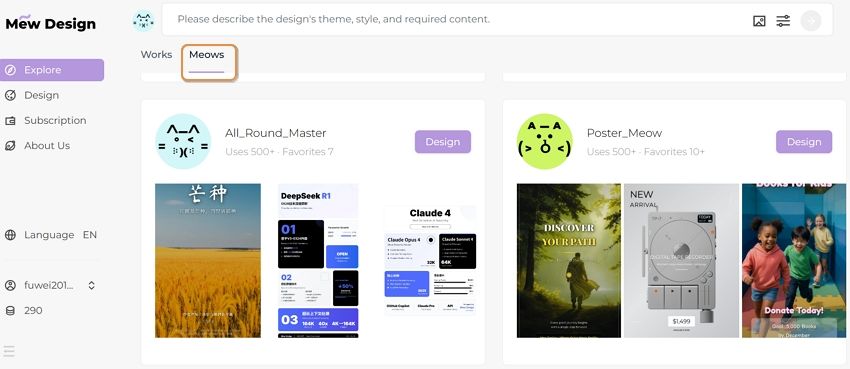
The Meows area shows available AI design agents. Open a Meow card to learn what it is good at, then use Design to make it the active designer in the prompt area.
3. Design Area
Section titled “3. Design Area”The Design area is where generated work appears. Use it to:
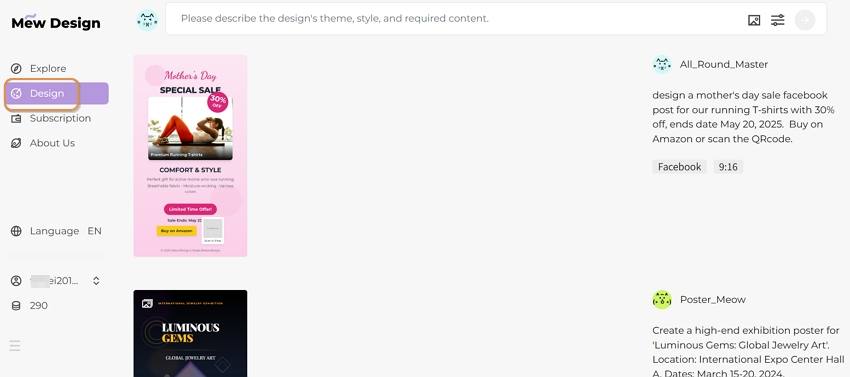
- Review current and past designs.
- See the prompt, Meow Designer, size, and scenario used for a result.
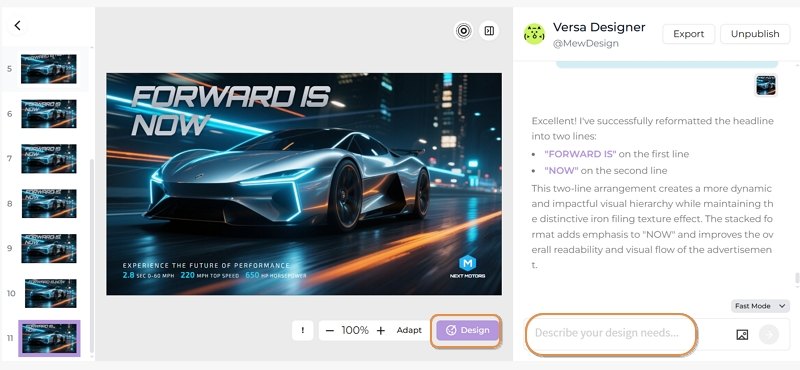
- Open a design, review its generation history, and continue the conversation.
- Modify, export, or publish a design.
Design history matters because follow-up instructions work best when you refer to the existing result: “keep the layout, make the headline larger, and change the background to warm orange.”
4. Subscription and Credits
Section titled “4. Subscription and Credits”Use the subscription area when you need more credits, higher-resolution downloads, PDF export, more storage, or deeper creation workflows.
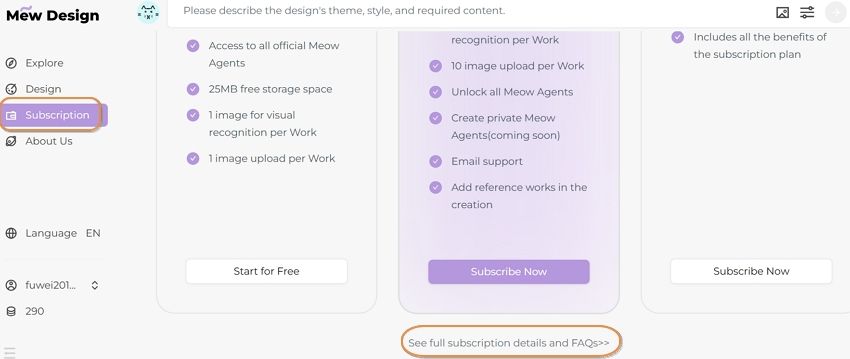
Current credit rules are also available on the pricing page.
5. About and Support
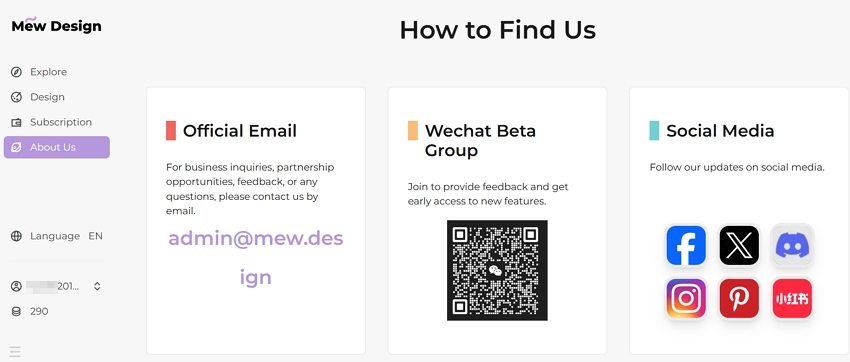
Section titled “5. About and Support”The About area links to Mew.Design’s product story, community channels, and contact options.
6. Profile and Settings
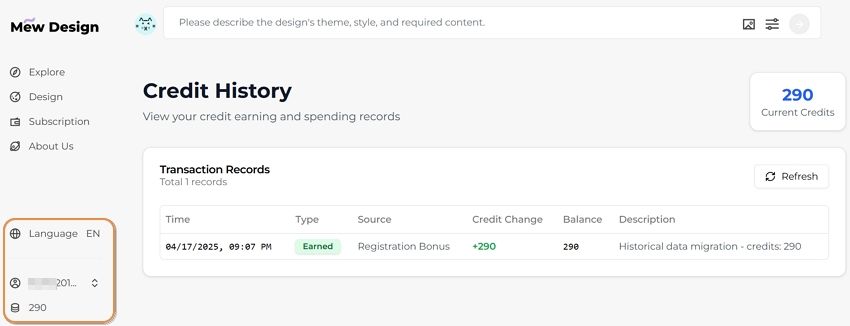
Section titled “6. Profile and Settings”Profile and settings include your credit balance, usage history, account details, API keys, and language controls.