
How to Generate a Design With AI
Mew.Design works best when you brief it like a designer: explain the goal, audience, format, exact text, required assets, and visual direction. The AI will generate a design, then you can revise it with follow-up instructions.
Step 1. Decide the Outcome
Section titled “Step 1. Decide the Outcome”Before typing your prompt, decide what you need:
- Format: poster, flyer, Instagram post, card, business card, infographic, etc.
- Audience: who will see it and where it will be used.
- Copy: exact headline, offer, date, address, CTA, disclaimer, or product details.
- Style: mood, colors, typography, layout, or reference.
- Assets: logo, product image, QR code, portrait, screenshot, or background image.
Step 2. Choose a Meow Designer
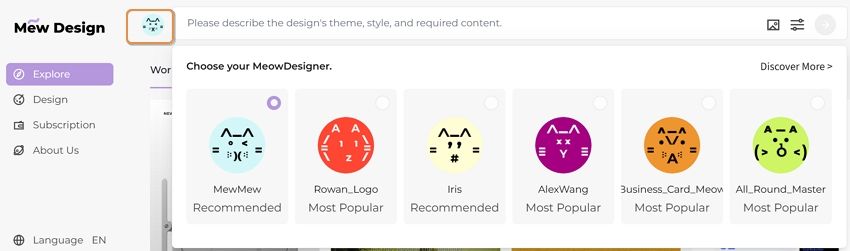
Section titled “Step 2. Choose a Meow Designer”Open the workspace and choose a Meow Designer from the selector. Each Meow has its own design strengths. Choose a specialist when your project has a clear scenario, or use a generalist for flexible tasks.
Step 3. Write a Strong Brief
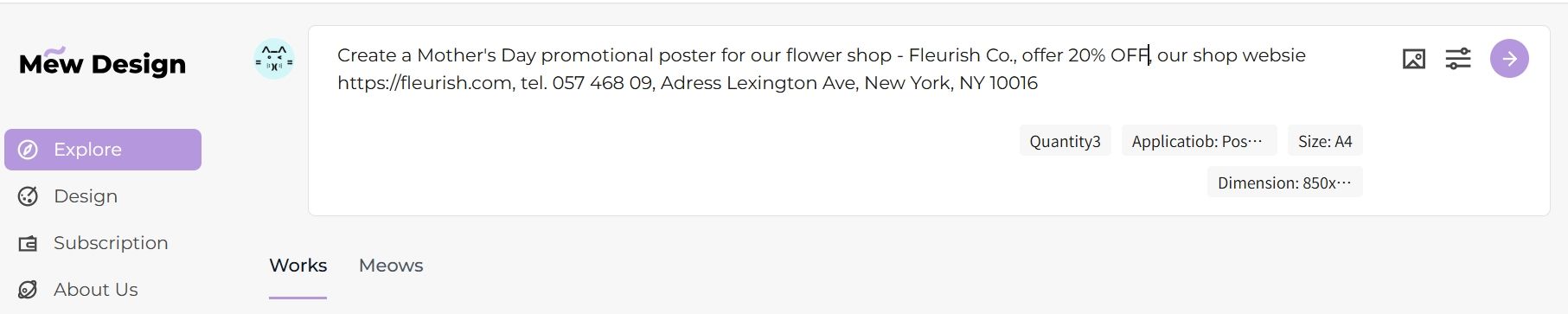
Section titled “Step 3. Write a Strong Brief”In the prompt box, describe the full design requirement. Short prompts work, but complete prompts reduce the need for paid revisions.
Step 4. Add Reference Images or Assets
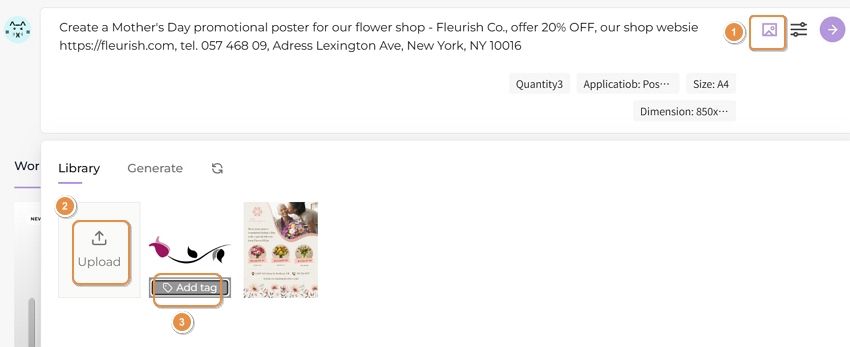
Section titled “Step 4. Add Reference Images or Assets”Use references when the design must follow a style or include real materials. Mew.Design can use logos, QR codes, product photos, backgrounds, screenshots, and visual references.
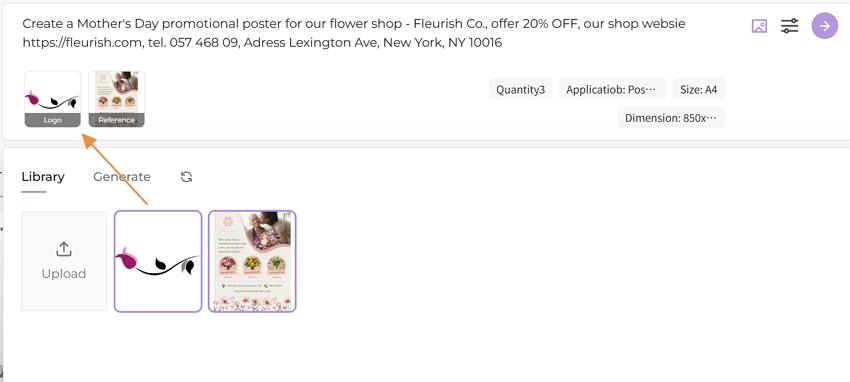
- Click the image icon in the prompt bar and upload images in the Library panel.
- Add labels such as
logo,QR code,product, orstyle reference. - Select the uploaded images you want to use for this design.
Step 5. Set Design Preferences
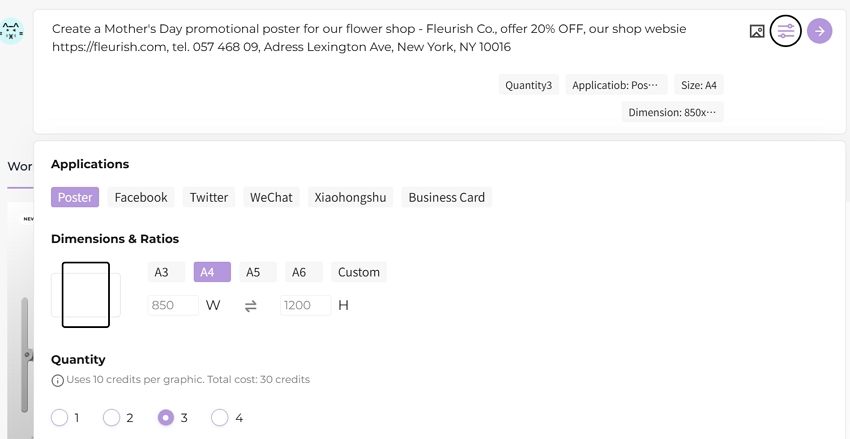
Section titled “Step 5. Set Design Preferences”Open the settings panel next to the prompt bar. Choose the design scenario, size, aspect ratio, and number of outputs. Use preset sizes for common channels, or choose custom dimensions when you are designing for a specific placement.
Step 6. Generate
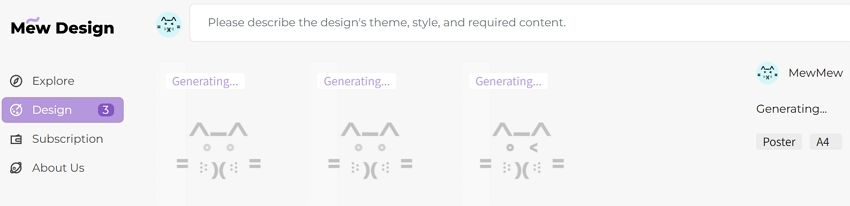
Section titled “Step 6. Generate”Click Go to start generation. Results appear in the Design area. Complex designs, larger sizes, or multiple outputs may take longer.

Step 7. Refine the Design
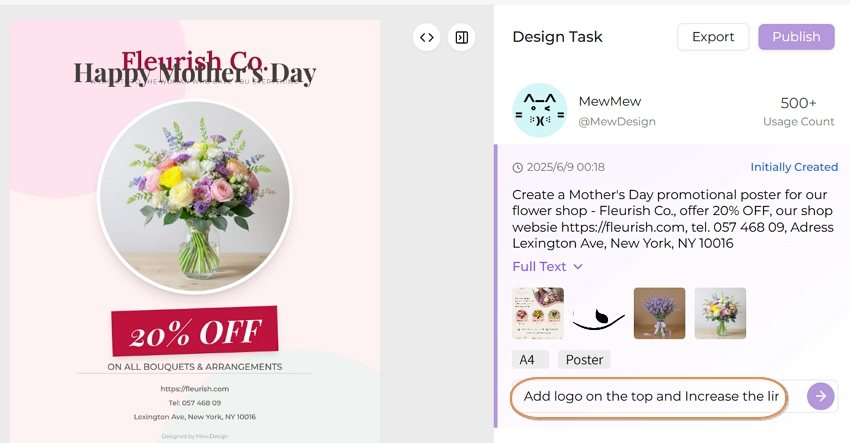
Section titled “Step 7. Refine the Design”Open a generated design and give a specific follow-up instruction. Say what should change and what should stay the same.
Good refinement prompts:
- “Keep the layout, but make the headline larger and easier to read.”
- “Change the background to warm orange, keep the product photo unchanged.”
- “Move the QR code to the bottom right and add more spacing around it.”
- “Make the style more premium and reduce the number of decorative elements.”
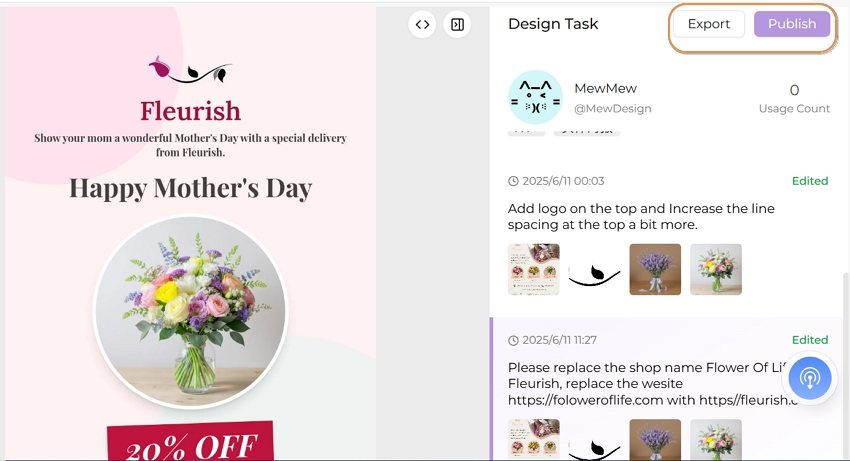
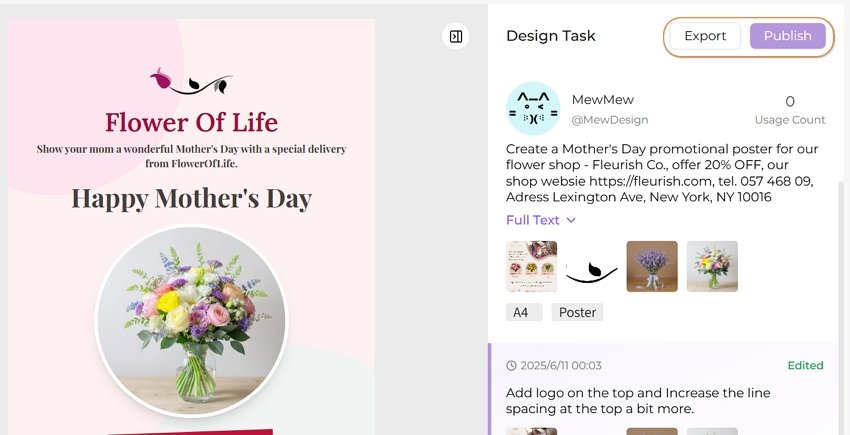
Step 8. Export or Publish
Section titled “Step 8. Export or Publish”When the design is ready:
- Export: Download the design using the export options available to your plan. Standard downloads are available for free users; high-resolution and PDF options depend on the active plan and product availability.
- Publish: Optionally publish your design to the Mew.Design community. Designs are private by default, and publishing is your choice.